

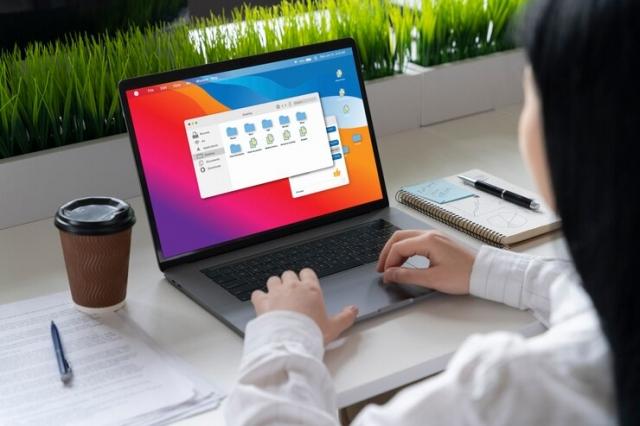
Running macOS on a Windows PC was once considered impossible, but thanks to virtual machine software, it's now a viable option for users who want to experience the best of both worlds. In this guide, we'll explore how to set up a virtual machine to run macOS on Windows, using popular software like VMware. We'll cover the benefits of using a virtual machine, the steps to set it up, and how to optimize your macOS virtual machine for the best performance.
Understanding Virtual Machines and Their Benefits
A virtual machine (VM) is a software emulation of a physical computer that runs an operating system (OS). It allows you to run multiple operating systems on a single physical machine, such as running macOS on a Windows PC. Some key benefits of using a virtual machine to run macOS on Windows include:
- Compatibility: Virtual machines allow you to run macOS and Windows simultaneously, enabling you to use macOS-exclusive software on your Windows PC.
- Convenience: With a virtual machine, you can switch between macOS and Windows without needing to dual-boot or purchase separate hardware.
- Safety: Running macOS in a virtual machine isolates it from your main operating system, reducing the risk of data loss or corruption.
Setting Up VMware to Run macOS on Windows
VMware is a popular choice for running macOS on Windows due to its stability and compatibility. Here's how to set up VMware to run macOS on your Windows PC:
- Download VMware: To download the VMware Workstation Player or VMware Workstation Pro software for running vmware macOS on Windows, visit the VMware website.
- Download macOS: Obtain a macOS virtual machine image (also known as a macOS ISO or disk image) from a trusted source.
- Install VMware: Install the VMware software on your Windows PC following the on-screen instructions.
- Create a New Virtual Machine: Open VMware and create a new virtual machine. Select "Typical" and choose "I will install the operating system later."
- Select macOS: Choose "Apple macOS" as the guest operating system and select the macOS version that matches your disk image.
- Customize Settings: Adjust the virtual machine settings, such as RAM allocation and hard disk size, based on your system's specifications.
- Install macOS: Start the virtual machine and install macOS using the macOS disk image. Follow the on-screen instructions to complete the installation.
Optimizing Your macOS Virtual Machine
To ensure the best performance and usability of your macOS virtual machine, consider the following optimizations:
- Install VMware Tools: VMware Tools enhances the performance and usability of your macOS virtual machine by providing drivers and utilities. Install VMware Tools from the VMware menu in your virtual machine.
- Allocate Sufficient Resources: Ensure your virtual machine has enough RAM, CPU cores, and hard disk space allocated to it for optimal performance.
- Enable 3D Acceleration: If your system supports it, enable 3D acceleration in VMware settings to improve graphics performance in macOS.
- Update VMware: Regularly update VMware to the latest version to ensure compatibility and security.
Conclusion
Running macOS on a Windows PC using a virtual machine opens up a world of possibilities for users who want to experience macOS without purchasing a Mac. By following this guide and using VMware, you can set up a virtual machine macos on Windows PC with ease. Whether you're a developer, designer, or simply curious about macOS, running it in a virtual machine is a convenient and practical solution offered by Into Geeks.